
AI motion graphics
AI product demo video maker
Create an AI product demo video with Maybe Labs by combining a focused brief, your brand assets, and real product captures. Review the story and animatic so the finished motion graphics explain one workflow clearly, from its starting state to a visible result.
Private beta · Waitlist access · Free during beta · No credit card
See a worked example with screenshots and a scriptWorked example
AI product demo example: save and reopen a project view
A demo should let a new viewer follow a task from its starting state to a visible result. Here is a 30-second script and screenshot sequence for saving a personal view, with the exact filters and records carried through the story.
Example Board is a fictional sample app. These screenshots illustrate a planning workflow; they are not the Maybe Labs interface, a customer case study, or a generated video. Use captures from your own product for production.
Example demo brief
Audience: a project lead learning Example Board. Task: reopen in-progress launch work assigned to Maya without rebuilding the filters. Starting point: All work. Result: a personal view named Launch review containing EB-104 and EB-112. Scope: saving filters, not sharing a view or proving how fast the app loads.
A prompt to adapt
Plan a 30-second software demo for a project lead learning Example Board. Use the supplied all-work, save-view, and reopened-view screenshots as product evidence. Demonstrate Status: In progress and Owner: Maya, name the personal view Launch review, then reopen it from Personal views. Preserve task IDs EB-104 and EB-112. Explain the task with short on-screen captions. Do not invent a sharing feature or a speed claim. Ask for an extra capture if an essential action is missing. Review the story, visual mapping, and animatic before rendering.
The screenshots behind the story
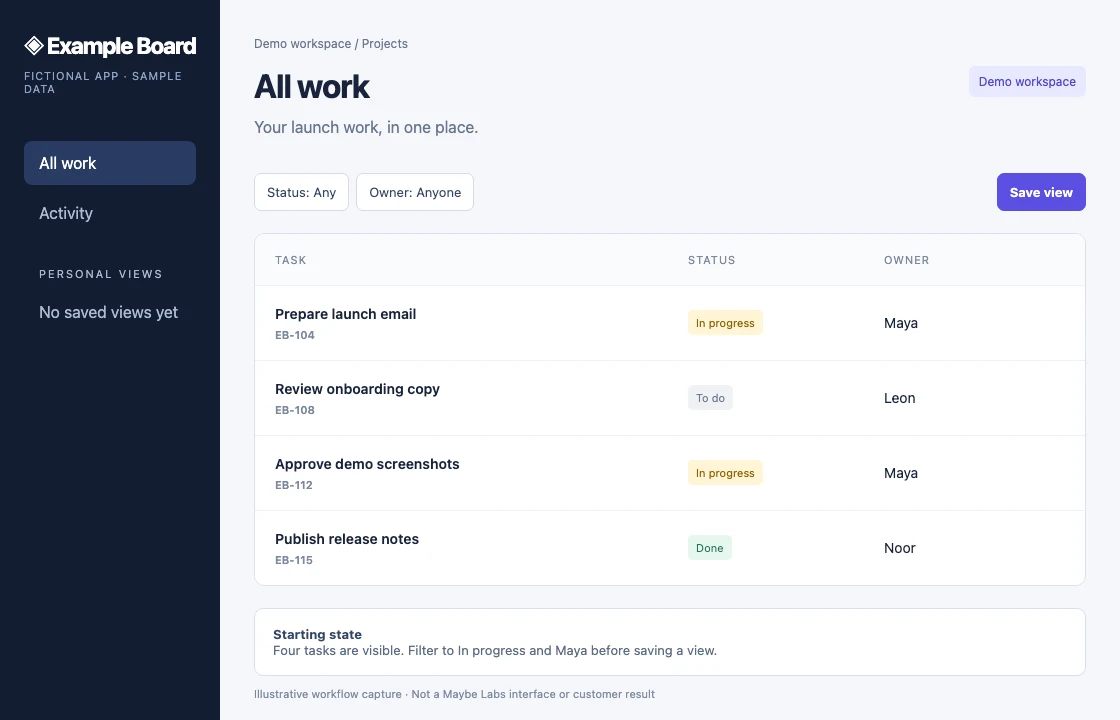
1. Establish the starting state
All work contains four sample tasks. EB-104 and EB-112 are in progress and assigned to Maya; the other rows should disappear when those filters are applied.
Fictional app · Sample data · Select image for full size
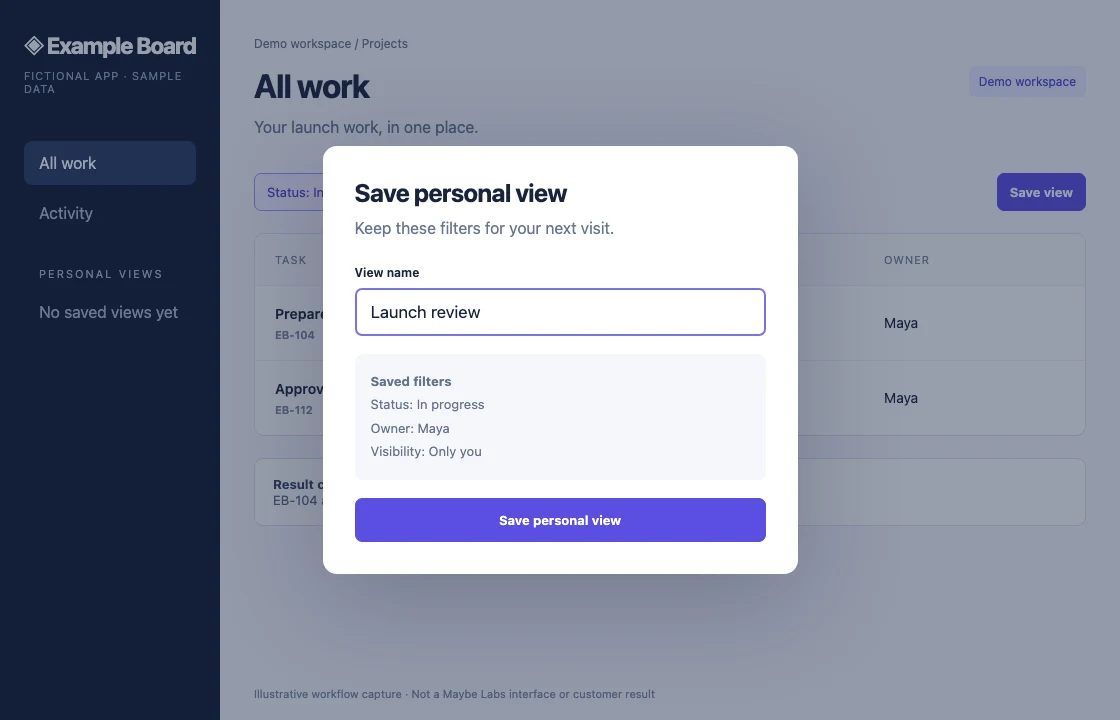
2. Show the decision being saved
The save dialog makes the view name, two filters, and personal-only visibility explicit. If the filter interaction itself matters, capture that intermediate state too.
Fictional app · Sample data · Select image for full size
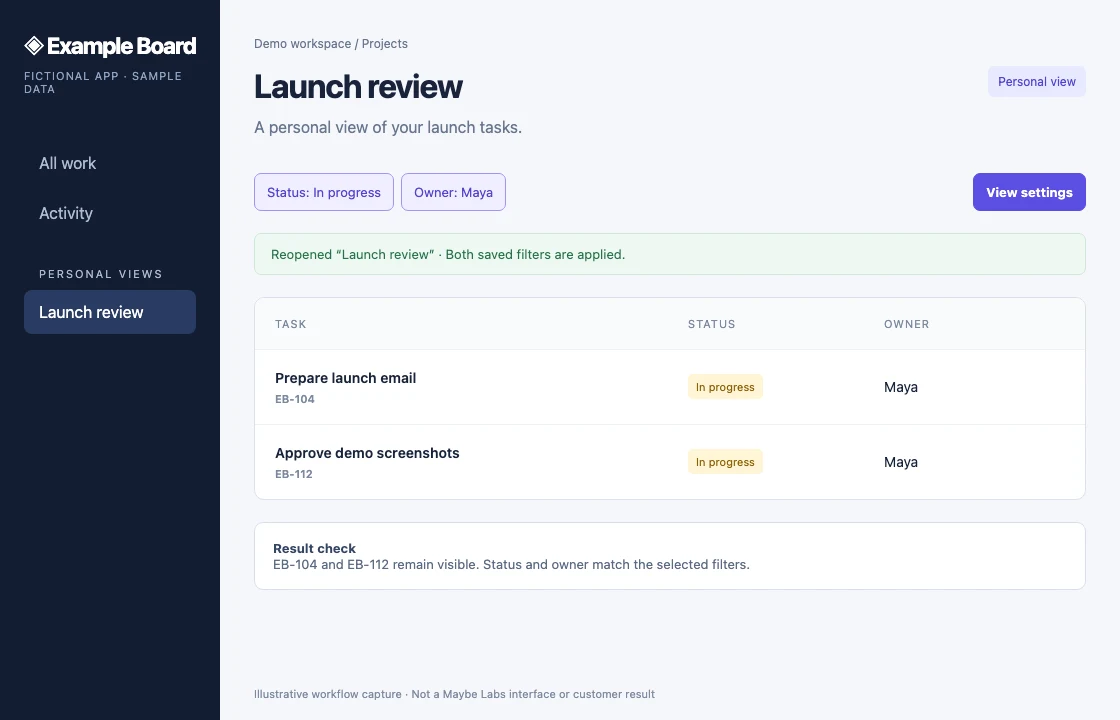
3. Prove the resulting state
Reopening Launch review preserves the two filters and the same two task IDs. This demonstrates state continuity; an edited sequence does not establish loading speed.
Fictional app · Sample data · Select image for full size
A timed script to adapt
Suggested editorial timing, not a measurement of app speed or a guarantee of rendering time. Review reading time in the assembled cut and adjust the timing before publishing.
- 0–5s
Keep your launch work one view away.
Establish the starting point: All work with four sample tasks.
- 5–12s
Filter by Status: In progress and Owner: Maya.
Crop toward the filter bar. Supply a filtered-state capture or recording if the exact click sequence must be demonstrated.
- 12–19s
Select Save view. Name it Launch review.
Hold the dialog long enough to read the view name, filters, and personal visibility.
- 19–26s
Open Launch review from Personal views.
Show the saved view selected. Confirm EB-104 and EB-112 match the starting list and selected filters.
- 26–30s
Try it with a workflow you return to.
Close with the task the viewer can perform. Keep a written step-by-step alternative beside the video.
Before approving this example
- Could a first-time viewer describe the task and recognize the final result?
- Are the view name, filter labels, and task IDs consistent across scenes?
- Are essential UI labels readable at the actual publishing size?
- Would continuous recording be needed to substantiate a claim about timing or uninterrupted interaction?
To plan your own cut, bring a brief, approved brand assets, and product captures. Maybe Labs is in private beta: start with the brief above to request access.
Evidence before effects
Supply the captures that demonstrate the task and verify the resulting state.
A coherent workflow
Keep the same project, record, or request recognizable as the story moves.
Review before rendering
Check the copy, scene mapping, and timing in the animatic before approving the final cut.
Who it's for
For SaaS founders, product marketers, and sales teams who need a concise explanation of a capability on a landing page, in a sales conversation, or alongside a feature announcement. This workflow is for short designed demos; a detailed recording or training lesson may need a different format.
- A short demonstration beside a product feature
- A sales follow-up answering one workflow question
- A launch cut that shows real software behavior
- An overview introducing a longer tutorial or live demo
Prepare the states that prove the workflow
Gather the initial state, meaningful action, and resulting state from the same product version and demo account. For a fictional reporting app, show the input, relevant report action, and the finished report. Remove private data and explain which labels must remain exact. Screenshots support a designed sequence; use continuous recording when the claim depends on timing or uninterrupted interaction.
How the AI product demo workflow works
Start with the audience, task, source facts, and desired next step. In Maybe Labs, review the brief and proposed story, approve the required brand and product visuals, and inspect the timed animatic. Check that the right capture is used in the right scene. Render after approval and review each exported format as a separate viewing experience.
Keep the demonstration honest
Animation can crop, highlight, and connect real states. It should not invent controls, make sample data look like a customer result, or imply a performance benchmark from an edited sequence. Identify conceptual mockups as concepts. If the product needs a human approval or has a relevant access restriction, keep that condition in the explanation.
Match the cut to the viewer’s question
Use a demo to answer how a task works. A launch film introduces what shipped; an explainer first establishes why a capability matters. Typical Maybe Labs cuts are 12–45 seconds, so choose a small workflow rather than compressing a full tutorial. Finish with the next step the audience can actually take.
Review your demo evidence
- ✓The same record or task stays recognizable
- ✓The important action and result are visible
- ✓Text is readable in every requested format
- ✓Availability and the destination match the CTA
Prompts to try
Questions
Can an AI product demo use real screenshots?
Yes. Maybe Labs supports product captures supplied with the brief. Review their scene mapping and the animatic; essential UI evidence should not be replaced with invented labels or controls.
Can I prove loading speed with an animated demo?
Not from an edited or animated sequence alone. A timing or performance claim needs a suitable measurement and evidence method.
Do I need to appear on camera?
A product-led motion-graphics demo can focus on the interface, text, and brand assets. A presenter is not required for that format.
How do I get access?
Join the private-beta waitlist. Access is granted gradually, free during beta, with no credit card required.