
AI motion graphics
Product update video maker
Create a product update video with Maybe Labs from a changelog, release notes, or a focused brief. Choose the change that matters to your audience, supply the product evidence, and review the story, assets, and animatic before rendering.
Private beta · Waitlist access · Free during beta · No credit card
See a worked example with screenshots and a scriptWorked example
Product update example: turn saved views into a 24-second story
An update for existing users needs to answer what changed and where to try it. This worked example turns a short release note into a focused announcement, with three captures that support the claim.
Example Board is a fictional sample app. These screenshots illustrate a planning workflow; they are not the Maybe Labs interface, a customer case study, or a generated video. Use captures from your own product for production.
Example release note
Saved personal views are now available in Example Board. Save a combination of status and owner filters, name the view, and reopen it from Personal views. Views are private to their creator; shared team views are not included in this example release.
A prompt to adapt
Create a 24-second, mute-first product update for existing Example Board users. Announce saved personal views. Use the three supplied screenshots: all work, save personal view, and reopened Launch review. Show Status: In progress and Owner: Maya. Keep EB-104 and EB-112 recognizable. Say views are personal, not shared. End with: Open All work, choose your filters, then save a personal view. Use the attached approved brand assets. Review the story and animatic before rendering.
The screenshots behind the story
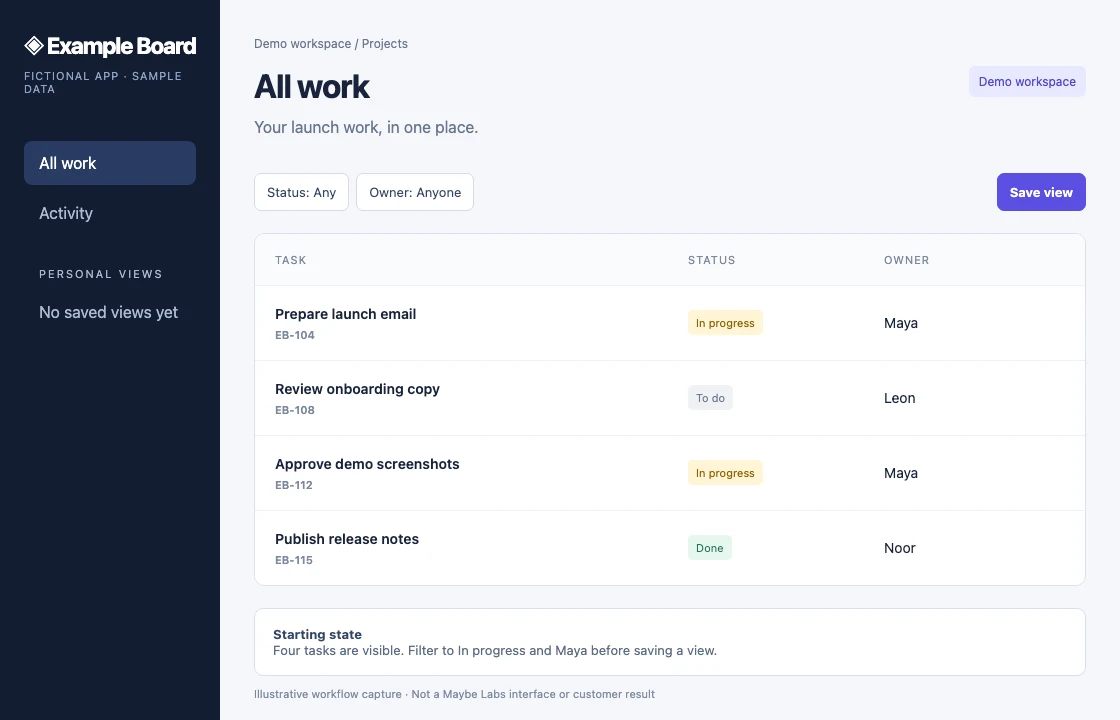
1. Establish the starting state
All work contains four sample tasks. EB-104 and EB-112 are in progress and assigned to Maya; the other rows should disappear when those filters are applied.
Fictional app · Sample data · Select image for full size
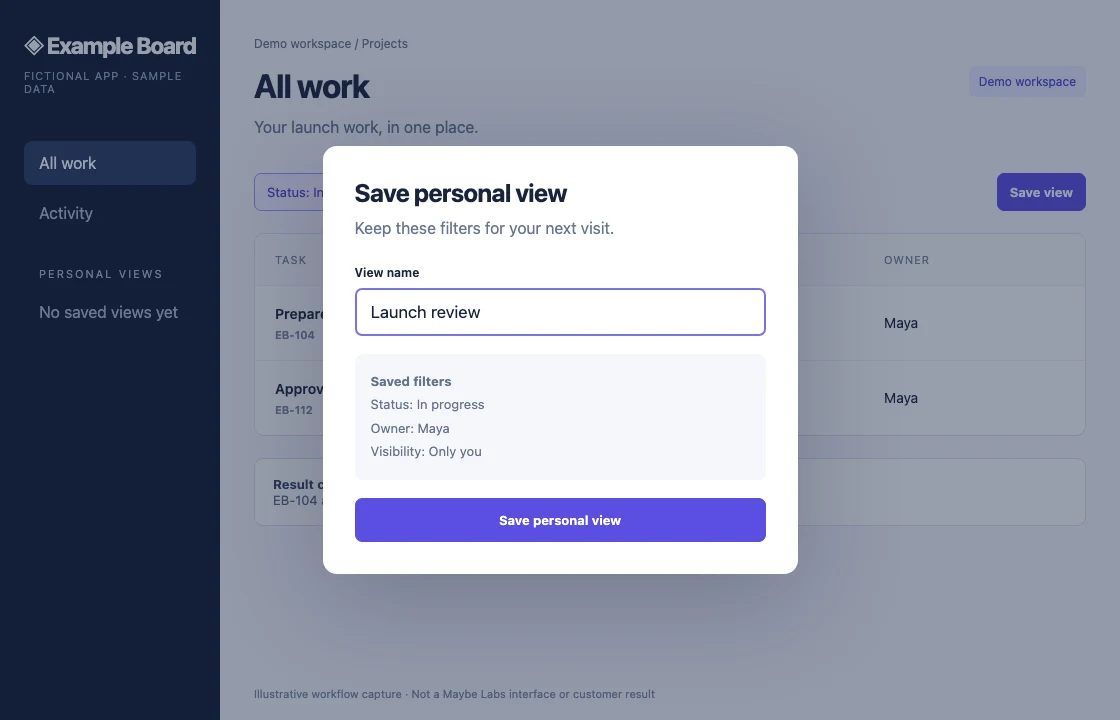
2. Show the decision being saved
The save dialog makes the view name, two filters, and personal-only visibility explicit. If the filter interaction itself matters, capture that intermediate state too.
Fictional app · Sample data · Select image for full size
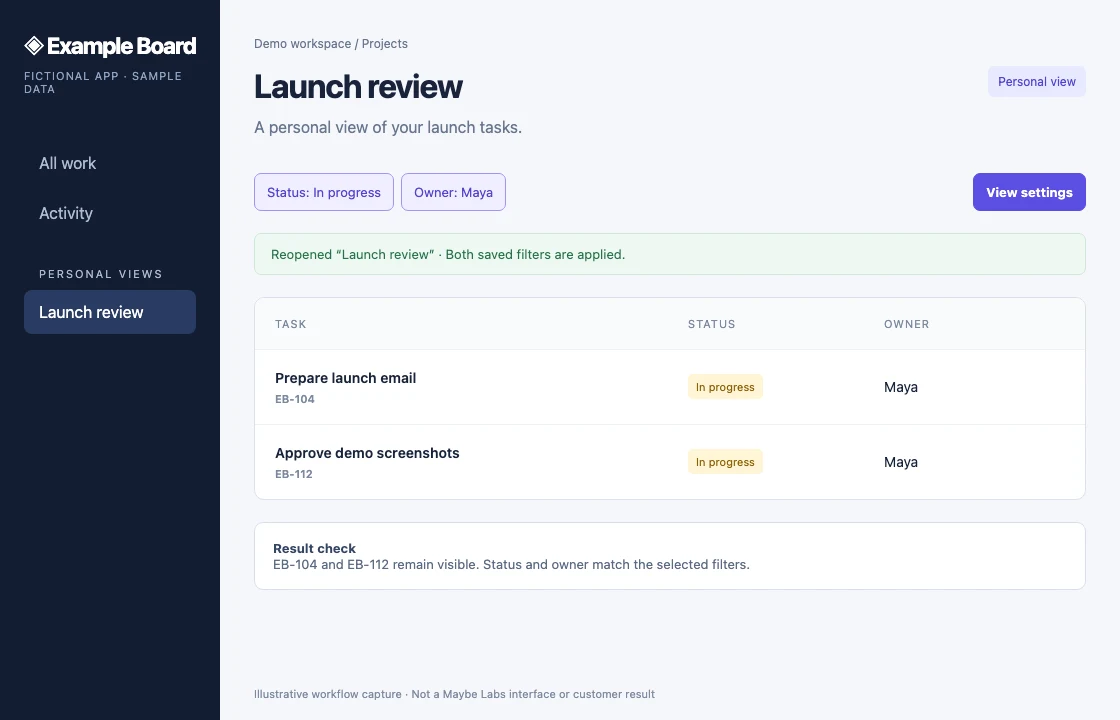
3. Prove the resulting state
Reopening Launch review preserves the two filters and the same two task IDs. This demonstrates state continuity; an edited sequence does not establish loading speed.
Fictional app · Sample data · Select image for full size
A timed script to adapt
Suggested editorial timing, not a measurement of app speed or a guarantee of rendering time. Review reading time in the assembled cut and adjust the timing before publishing.
- 0–4s
Your launch filters. Saved for next time.
Open on the starting work list. Introduce one useful change rather than the entire release.
- 4–10s
Choose In progress + Maya.
Highlight the two filter labels. Use an additional filtered-state capture if the edit needs to show the exact interaction.
- 10–16s
Save a personal view: Launch review.
Use the save dialog. Keep Only you visible so the announcement does not imply shared views.
- 16–21s
Reopen the same view. Both filters stay applied.
Show Launch review selected and the same two task IDs in the result.
- 21–24s
All work → filters → Save view.
Close with the in-product next step. Link the announcement to the complete release note.
Before approving this example
- Does the final announcement preserve the personal-only limitation?
- Do both saved filters and the same task IDs appear in the result?
- Can an existing user find the entry point without hearing narration?
- Does the written release note explain availability and anything omitted from the short cut?
To plan your own cut, bring a brief, approved brand assets, and product captures. Maybe Labs is in private beta: start with the brief above to request access.
A useful headline change
Choose the capability the audience needs to understand rather than reading every ticket.
Source facts stay visible
Confirm rollout conditions and support each important statement with approved evidence.
Brand continuity
Reuse approved logo, colors, and type while reviewing the specific story and captures for each release.
Who it's for
For SaaS product marketers, founders, and customer-facing teams announcing a useful change to existing or prospective users. Focus on what customers can now do and who can access it. The complete written release notes remain the source for detailed fixes and conditions.
- A feature spotlight for a meaningful new capability
- A release-note companion for an update email
- A short product-page or in-app announcement
- A recurring update format using approved brand assets
From release notes to a customer-facing story
Begin with the source notes and identify the useful change. For a fictional saved-view release, demonstrate selecting a filter, saving it, and reopening the view. Keep maintenance items in the written notes unless they affect the story. An internal milestone or limited rollout should not become an announcement of general availability.
Prepare evidence for the changed workflow
Capture the before or starting state, the meaningful action, and the result from a consistent demo account. Supply approved brand assets and remove private data. If the update has no visible interface, explain the verified mechanism with clearly identified visuals rather than inventing a screenshot of an unavailable feature.
Review before you render
In Maybe Labs, confirm the brief and story, approve the required visuals, and inspect a timed animatic before rendering. Verify that the result is readable and that the change still makes sense without sound. If the source notes or rollout change, review the affected copy and visuals again.
Publish the video beside the full update
Keep a relevant written release page or help resource available from the surrounding copy. Match the availability line across the film, captions, transcript, and destination. Typical Maybe Labs cuts are 12–45 seconds; choose the duration around the evidence and inspect each export format separately.
Check the update before sharing
- ✓One headline change matches the audience
- ✓The product captures prove the capability
- ✓Roles, rollout, and availability are accurate
- ✓The written release and video describe the same offer
Prompts to try
Questions
Can I turn release notes into a product update video?
Yes. Supply the notes, select a meaningful change, add the required product evidence, and review the story and animatic before rendering.
Does this replace my written changelog?
No. The video highlights a useful change. Keep the complete notes available for detailed fixes, conditions, and instructions.
Can I make one for every release?
The workflow supports recurring updates, subject to your beta access and current usage allowances. Review the facts, captures, and availability for each release.
How do I try Maybe Labs?
Request private-beta access through the waitlist. Access is gradual, free during beta, and requires no credit card.